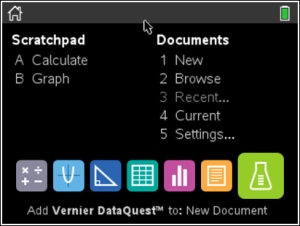
This is the place where you go to
open all of the "programs" you need
to complete your tasks.
In TI-Nspire-speak, these "programs" are referred to as your "applications". (Not to be confused with the applications, or APPS, used on the TI-84+ models.) |
Applications:
 Calculator - evaluate math expressions and formulas Calculator - evaluate math expressions and formulas
 Graphs - plot and analyze functions Graphs - plot and analyze functions
 Geometry - create and investigate geometric shapes Geometry - create and investigate geometric shapes
 Lists & Spreadsheets - organize data in tables, perform analysis Lists & Spreadsheets - organize data in tables, perform analysis
 Data & Statistics - data sets seen on plots and histograms Data & Statistics - data sets seen on plots and histograms
 Notes - add text, notes, etc alongside math work Notes - add text, notes, etc alongside math work
 Vernier DataQuest - collect and investigate Vernier DataQuest - collect and investigate
real-time sensor data
|
Think DOCUMENTS!
Whenever you work on this calculator, you are "designing" (or editing) a document.
To create a new document, press and hold  - the letter N - the letter N
or
 , #1 File, #1 New Document and your choice of "applications" will appear. , #1 File, #1 New Document and your choice of "applications" will appear.
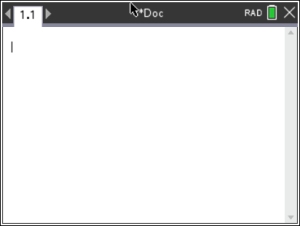
Each time you use the calculator you are creating a document with problems (chapters) and pages. When you start an application, a "tab" will appear at the top of the screen telling you which "problem" and "page" (1.1) of your document is open. As you create more pages, the number of tabs will increase. This screen shows tab 1.1 meaning problem one, page one.
You will continue adding pages to a problem, 1.2, 1.3, 1.4, ... , until you tell the calculator to move on to problem 2.1.
|
 Each document can consist of up to
30 "problems" and each problem
can
have at most 50 "pages". |
To insert a new "page"
Method 1: press - to see the choices for the type of new page you want to add.
The tabs will start a pattern of 1.1, 1.2, 1.3, 1.4, etc for new pages.
Note: + page appears above the key.
Method 2: , #4 Insert, #2 Page (or hold down and press the letter I )
To insert a new "problem"
Method: , #4 Insert, #1 Problem
The tab will now change its leading number to 2.1, or 3.1, etc.
These will be brand new sections. Any stored variables from the previous questions will no longer be recognized. |
To move between "pages" hold down and press a Touch Pad arrow.
To delete a "page" hold down and press Up Arrow.
This will show the Page Layout of all pages within a "Problem".
Use the arrows (Touch Pad) to select
which page to delete.
Press
 . .
( with down arrow will exit the layout)
Saving Documents:
Because you are creating "documents", you can save your work, and you can reload previously completed work. |
To Save:
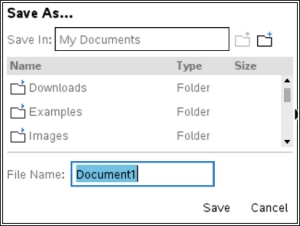
Press , #1 File, then "Save" or "Save as".
Use the keypad to type the name of your file.
Press  or select "Save" to store the file. or select "Save" to store the file. |
 |
|
New Document:
When choosing a "New Document" you may be asked if you wish to save the document which is open/working on the calculator at that time.
As you begin your new document, you will be asked to choose which "application" to activate on the first page of the document:

Short Cuts:
New Document: +N
Open Document: +O
Close Document: +W
Save Document: +S
|

 & Documents